Submitting a Release
Your application is the listing customers browse. A release is one version of it. You create the application once, then add a release each time you have a new version to publish.
Both live under App Store → App management in the Console.
The Create app wizard
Create new app opens a wizard with four steps, shown down the left-hand side:
- App details — the name of your application
- Release — the version, registry and Helm chart
- Marketplace — the listing customers see
- Review & submit — a summary, and the button that sends it for review
Steps 1–3 are saved when you select Save and next, so your work is kept as you go. On step 4, the button becomes Submit for review.
If you leave the wizard before the end, whatever you have already saved stays in App management as a draft — the application on its own, or the application and its release. Anything typed on the current step and not yet saved is lost, and the wizard warns you before you go.
1. App details
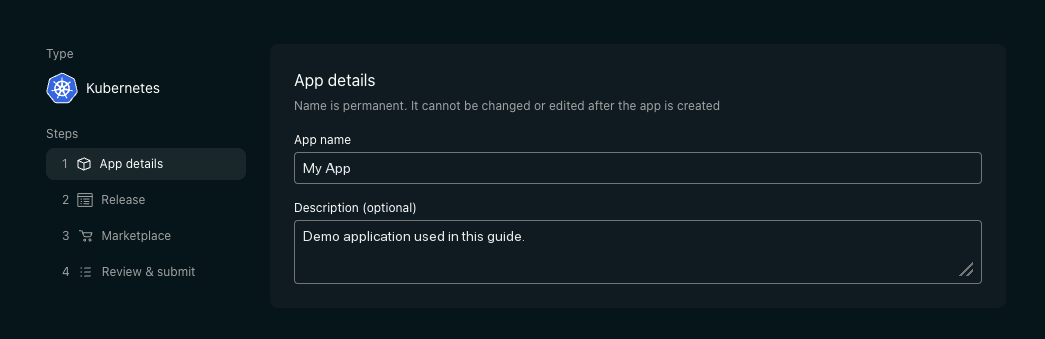
| Field | Required | Notes |
|---|---|---|
| App name | Yes | Permanent — see below |
| Description | No | A short summary of the application |
Name is permanent. It cannot be changed or edited after the app is created.
Everything else about the application — its listing, description and category — you can edit later. Check the spelling and capitalisation before you select Save and next.
Save and next creates the application. It starts as a draft, and is not visible to customers until a release of it is published.
2. Release
Everything about the version: where its images come from, what it is called, and where to fetch its chart. The step is laid out top to bottom in that order.
Registry vault
The Registry vault holds the address of your image registry and the credentials used to pull from it. Select one you have already set up from the dropdown.
For how vaults work — naming rules, rotating credentials, and ACR service-principal credentials — see Application Secrets Management.
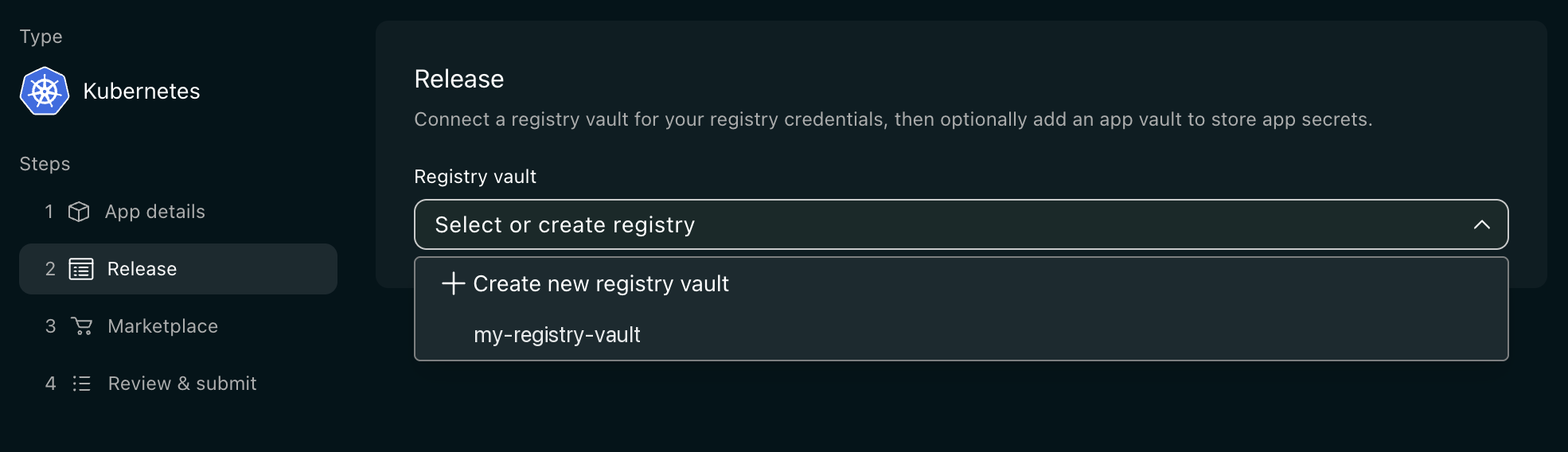
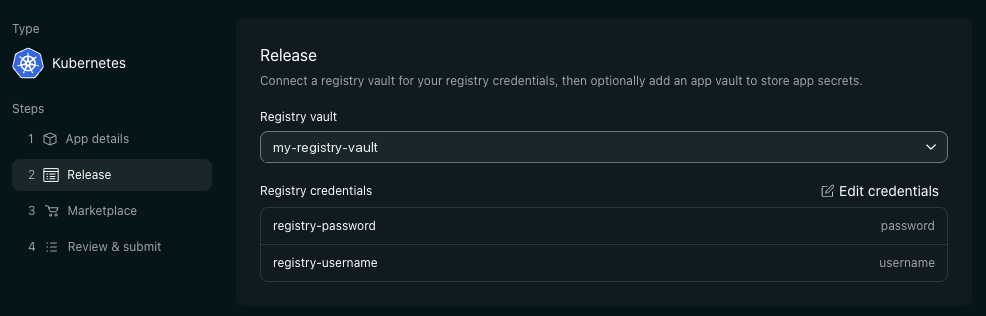
Once selected, the vault's credentials are listed under Registry credentials. Use Edit credentials to change them.
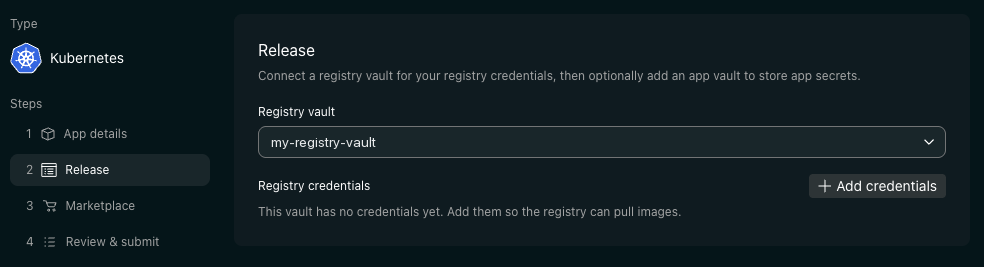
If the vault has no credentials yet, select Add credentials and enter the username and password. The registry cannot pull your images until it has them.
Creating a new registry vault
If your registry is not listed, select Create new registry vault from the same dropdown.
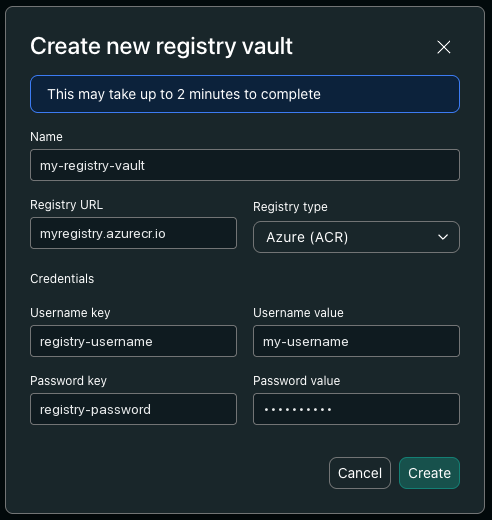
| Field | Required | Notes |
|---|---|---|
| Name | Yes | A name for the vault, for example my-registry-vault |
| Registry URL | Yes | For example <my-registry>.azurecr.io |
| Registry type | Yes | The kind of registry it is: Azure (ACR), AWS (ECR), Google (GCR/GAR) or Docker Hub |
| Username key / Username value | Yes | A name for the stored username, and the username itself |
| Password key / Password value | Yes | A name for the stored password, and the password itself |
The vault is created first and the credentials are added once it is ready. Keep the dialog open until it finishes. If you close it early, the vault is still created — add its credentials afterwards from the Registry credentials section.
Once a vault is created, only its credentials can be changed. Its name, registry URL and type are fixed.
Release details
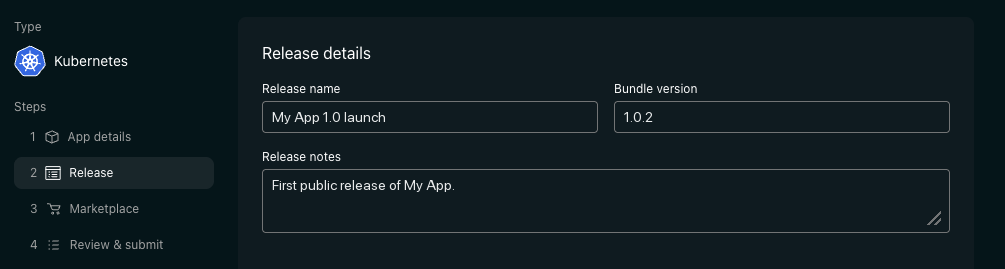
| Field | Required | Notes |
|---|---|---|
| Release name | Yes | A label so you can tell releases apart, for example My App 1.0 launch |
| Bundle version | Yes | The version number of this release, for example 1.0.2 |
| Release notes | Yes | What is changing in this release |
The Bundle version must be three numbers separated by dots — 1.0.2, not 1.0 — and a version you have not used on this application before.
A failed release stays editable. Correct whatever went wrong — including the chart, the registry or the version itself — and submit it again. You do not need to create a new release or raise the Bundle version to retry.
You need a new Bundle version once a release has been through successfully: versions are unique per application, so publishing 1.0.2 means your next release has to be a different number.
Helm chart
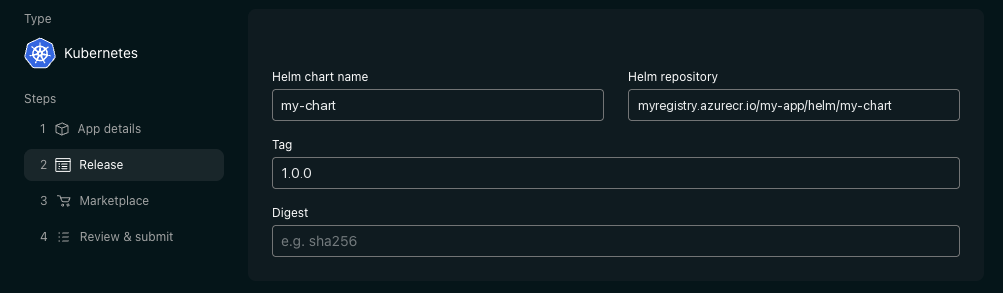
Where to fetch your chart from:
| Field | Required | Example |
|---|---|---|
| Helm chart name | Yes | my-chart |
| Helm repository | Yes | <my-registry>.azurecr.io/my-app/helm/my-chart |
| Tag | Yes | 1.0.0 |
| Digest | No | sha256:… |
Chart.yaml exactlyTag is compared against the version line inside your chart, character for character. version: 1.0.0 and a Tag of 1.0.0 pass. A Tag of v1.0.0 does not — the leading v makes it a different string.
Tag and Bundle version are separate and need not match each other. Only the Tag has to agree with your chart.
Your chart needs Chart.yaml, values.yaml, and a templates folder, and it has to ask for at least one container image. See Application Packaging.
Customers install your chart as it comes — nobody edits it for them. If it will not start until a setting is changed by hand, it will not start for anyone. Ship defaults that run.
Every field on this step is required except Digest. Save and next creates the release as a draft; nothing is checked until you submit.
3. Marketplace
The Marketplace listing is what customers see.
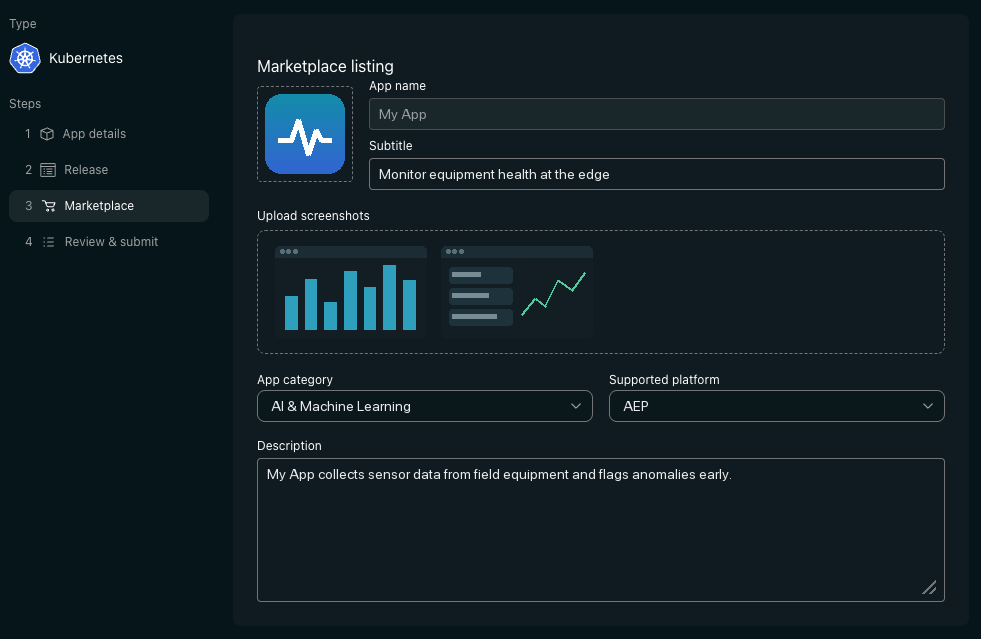
| Field | Required | Notes |
|---|---|---|
| App icon | Yes | The square upload box at the top left |
| App name | — | Read-only — this is the permanent name from step 1 |
| Subtitle | Yes | One line under the name |
| Upload screenshots | No | Images of your application for the listing |
| App category | Yes | How customers find you when browsing |
| Supported platform | Yes | Which platforms your application runs on; you can pick more than one |
| Description | Yes | What your application does |
The categories are AI & Machine Learning, Compute & Developer Tools, Drilling & Field Operations, Core Operations & Industrial Platforms, Data Platforms & Integration, Safety, Security & Autonomous Operations, Asset Performance & Predictive Maintenance, Digital Twins & Simulation, Emissions & Environmental, and Logistics & Process Automation.
The listing belongs to the application, not the release, and is shared by all of its releases. Changing it changes it for every release.
4. Review & submit
The last step is a read-only summary of the other three. Check it, then select Submit for review.
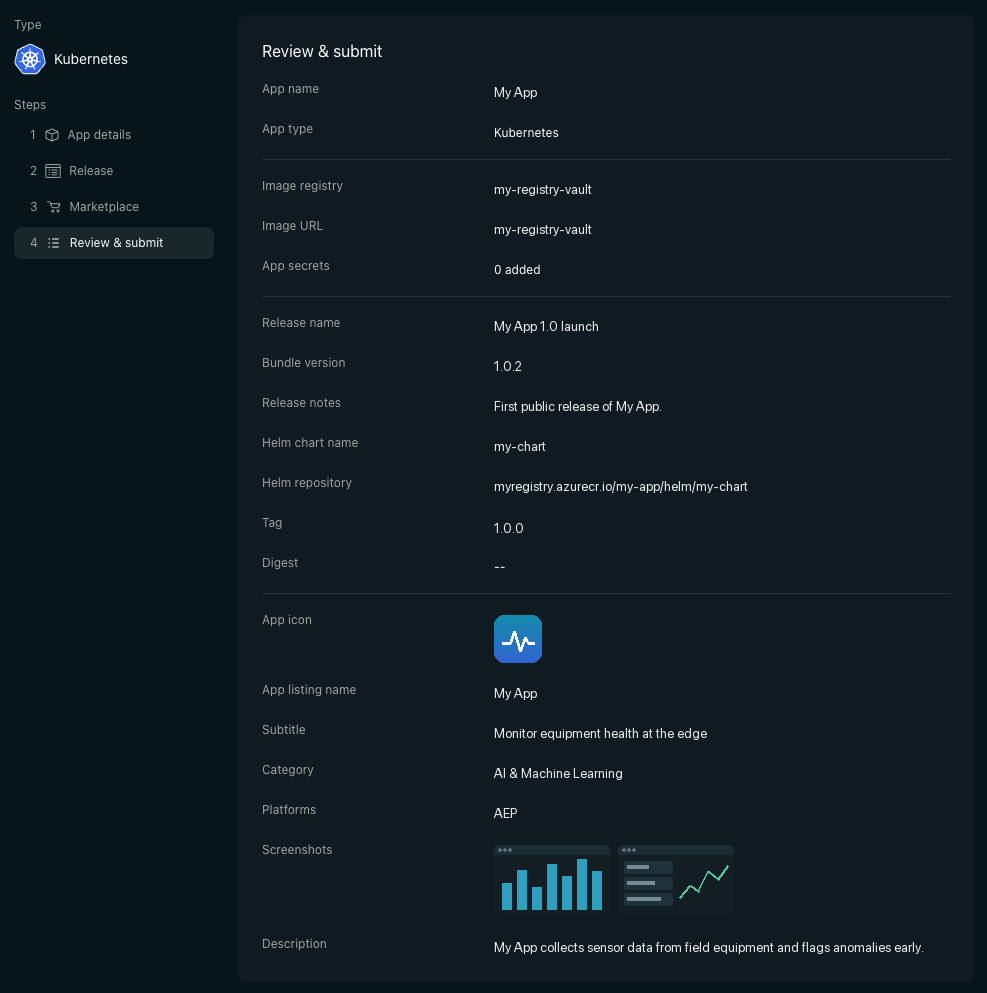
Every step has to be complete and saved first. If one is not — a required field is empty, or you edited a step after saving it — the wizard takes you to that step instead of submitting.
Submit for review starts the checks and takes you to the release page. While they are running, the release is locked — the chart, registry and version cannot be changed. If the checks fail, it unlocks and you can edit and resubmit it. The listing stays editable throughout.
Only one set of checks can run for the same application and version. Submitting again while the first is running is refused.
If a run looks stuck, cancel it rather than submitting again.
The release page then shows how far the checks have got. The last one installs your application for real, so expect it to take about as long as your application takes to start.
See Intake validation for what each check looks for.
Adding a release to an existing application
From the application's page, Create new release opens the same wizard at the Release step. The Marketplace step comes pre-filled from the application's existing listing, so you only change what is different, then submit as above.
Editing a release or listing
Edit release and Edit listing on the release page open the same wizard at the matching step. While a release is under review, or once it has passed, the release itself can no longer be edited, but its marketplace listing still can.