Application Overrides
Application Overrides let you change how a deployed application is configured — replica counts, resource requests, feature flags, timeouts, log levels, any value the chart exposes — without publishing a new version and without redeploying the application.
You open the application instance in the Console, edit its configuration, review the change, and deploy it. The platform rolls the change out to the running instance in place. The application keeps its identity, its data, and its history; only its configuration changes.
An override changes the values your application chart was deployed with. It does not change the chart itself — its templates, its structure — or the application version recorded against the instance. To ship a new chart, publish a new version of your application.
When to use it
- A customer needs a different replica count, memory limit, or CPU request than the default your chart ships with.
- You want to turn a feature flag or optional component on or off for one deployment.
- You need to tune something operationally — a timeout, a poll interval, a log level, a cache size — on an instance that is behaving differently from the rest of the fleet.
- A single instance needs a different endpoint, bucket, hostname, or region than your chart default.
- You want to try a configuration change on one instance before rolling it into your chart defaults for every instance.
When NOT to use it
- You need to ship a new chart. New templates, new resources, a restructured chart — publish a new version of your application instead.
- You need to change a secret value. Secrets are managed separately — see Application Secrets Management. Rotate the value there and let the application pick it up.
- You need to change platform-managed settings. The platform reserves the
global.armadablock of the configuration for itself — the console and identity endpoints, and the organization, account, and instance identifiers it wired up for this deployment. It is not yours to edit — see What you can and cannot change. - The change belongs to every deployment of your application. If every customer needs it, it belongs in your chart defaults, not in a per-instance override. Overrides are for deviations.
Where the feature is available
Application Overrides are available for applications deployed from the Marketplace.
They are not available for:
- Platform add-ons. These take their configuration through a different path and are not overridable here.
- VM workspaces — including those published and deployed through the Marketplace. A VM workspace is not a containerized workload configured by chart values; what it runs is defined by its image and machine specification, and it is managed through the VM lifecycle controls rather than through overrides. Being a Marketplace application is not on its own enough to make an instance overridable.
- Instances that are being deleted, or have been deleted. Once teardown has started, configuration is frozen.
If Edit deployment config is missing or disabled for an instance you expected to see it on, it will be one of the three cases above.
Applying an override
1. Open the instance configuration
Find the application instance in the Console and select Edit deployment config from the actions panel on the instance page.
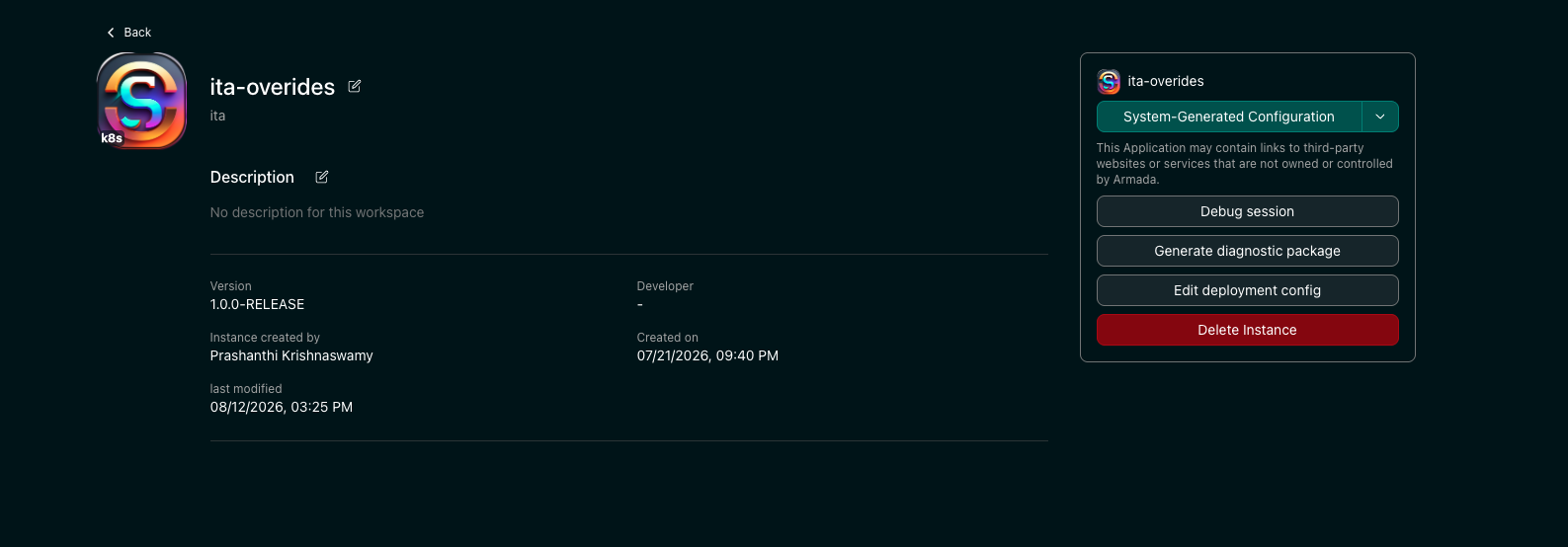
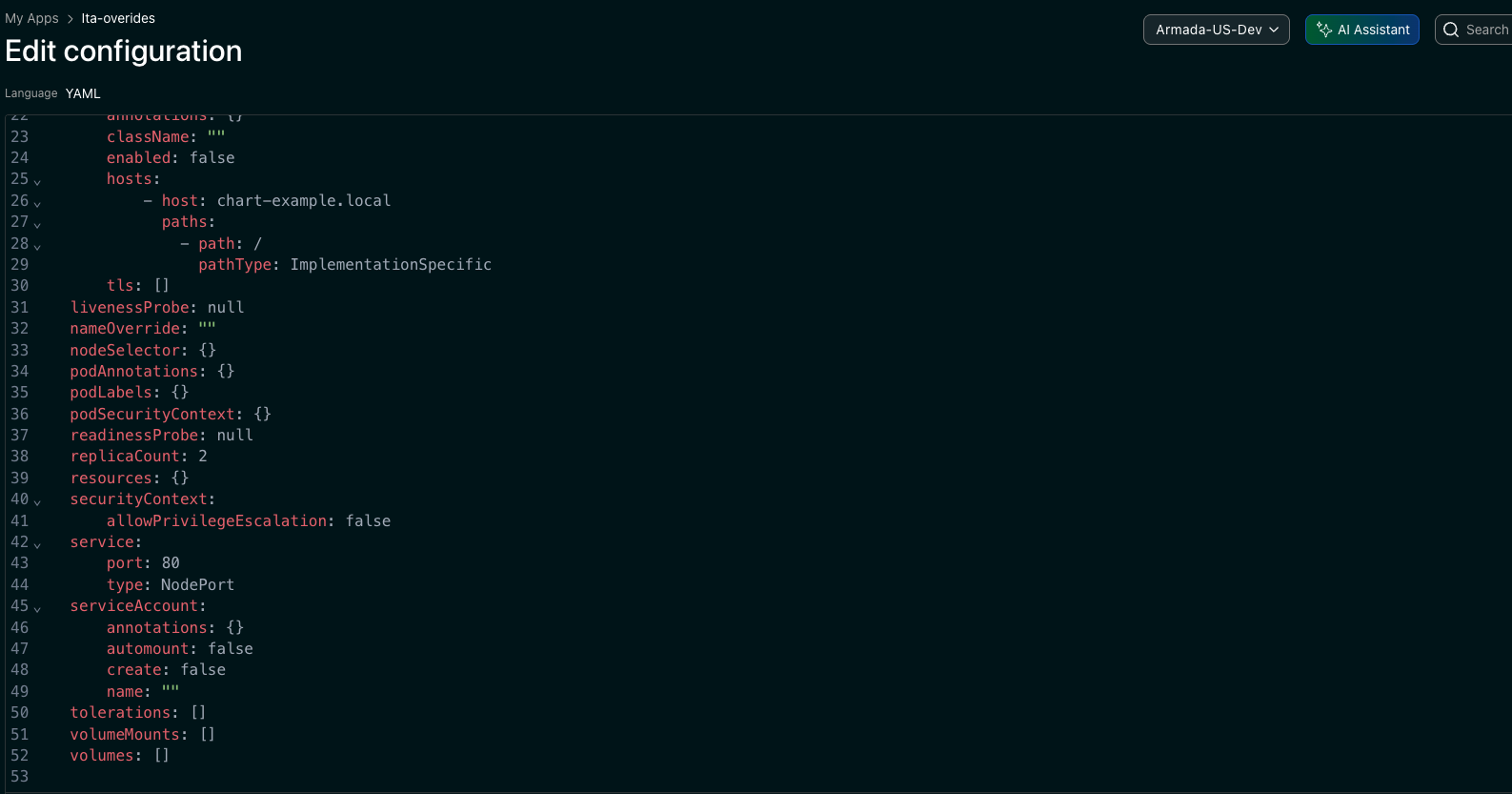
The Console opens the Edit configuration page and loads the full effective configuration of the running instance — that is, your chart's defaults with any overrides already in effect merged on top of them.
This matters: you are not editing a sparse fragment or guessing what the chart's defaults were. You see the complete, resolved configuration the application is actually running with, as YAML, ready to edit.
2. Edit the values
Edit the YAML in place. Change only what you need to change.
You are shown the whole configuration, but only the lines you actually change are saved. The platform compares your edit against your chart's defaults and keeps just the differences. Everything you left alone is not saved at all — the chart fills it in again each time the application deploys.
An example. Say your chart's defaults are:
replicaCount: 2
logLevel: info
requestTimeoutSeconds: 30
You open the configuration, change replicaCount to 5, and deploy. What gets stored for this instance is only:
replicaCount: 5
The application still runs with logLevel: info and requestTimeoutSeconds: 30 — those come from the chart at deploy time, not from anything saved against the instance.
3. Check the Problems panel
The Problems panel runs along the bottom of the editor and keeps three counts as you type:
| Count | What it means |
|---|---|
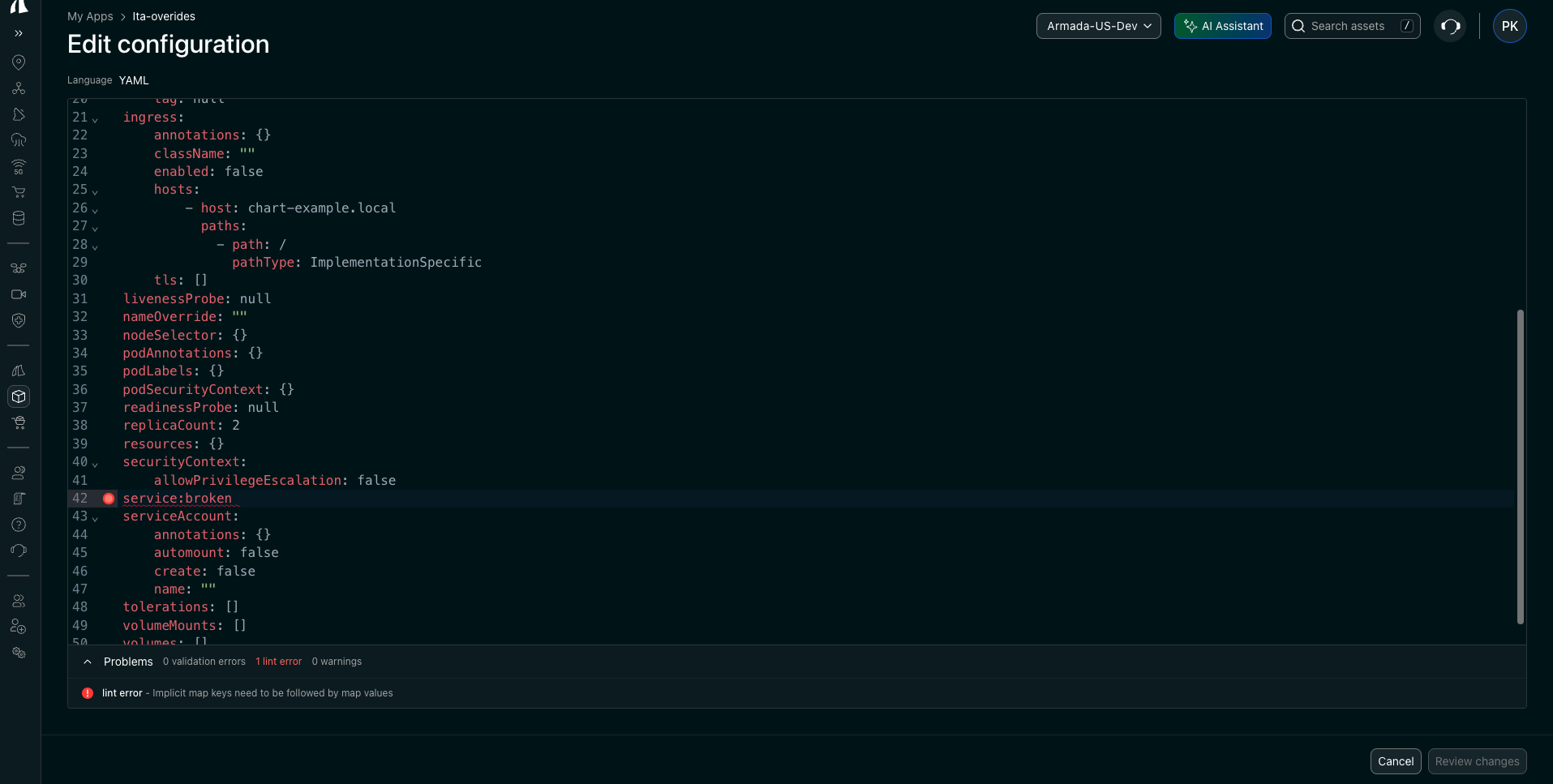
| Lint errors | The YAML itself is malformed and cannot be parsed — a missing space after a colon, a bad indent, an unclosed quote. Nothing can be done with the file until this is fixed. |
| Validation errors | The YAML parses, but your chart does not render with these values. This is the dry run against your real chart: the platform renders it with what is currently in the editor and reports whether the result is deployable Kubernetes resources. |
| Warnings | Advisory. Worth reading — they are the problems that will reach the cluster rather than being caught here. |
Nothing is written and nothing is deployed while you are in the editor.
Expand the panel to read a problem in full.
A lint error points at the line that broke the YAML. Here a missing space after the colon on line 42 means the file no longer parses, and the editor flags the line directly:
A validation error comes from rendering your actual chart, so it names the template and the value that failed:
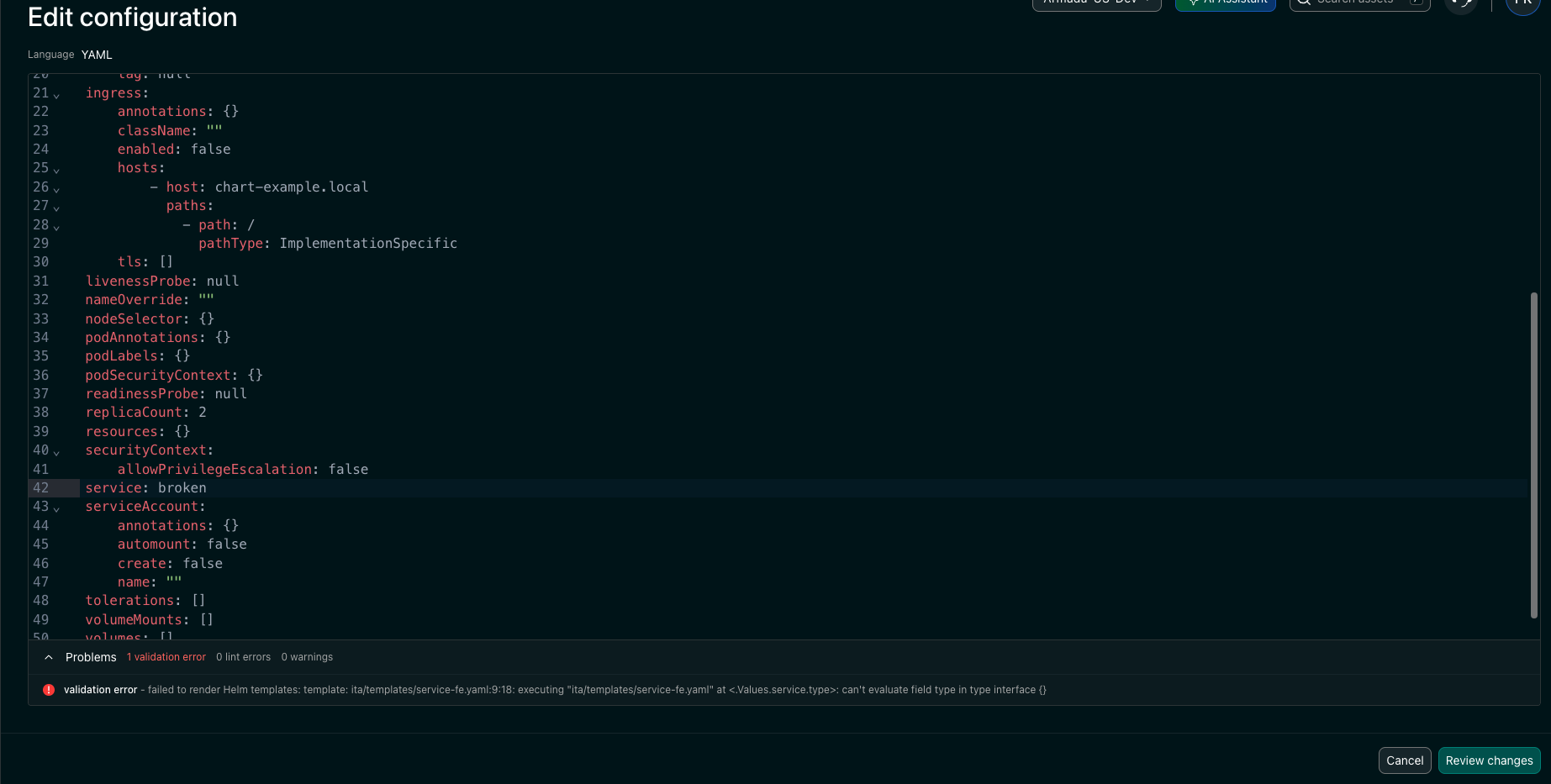
The usual causes of a validation error are a required value removed, a type that doesn't fit where the chart expects something else, an indentation change that altered the shape of the document, or an optional component enabled without the values it needs.
Rendering evaluates the whole chart, but stops at the first error it hits — standard Helm behavior. So if your edit has more than one problem, fixing the reported error can reveal the next one on the next render. Two or three rounds of fixing is normal for a large edit, and is not a sign that anything is wrong with your configuration or with the platform.
A clean result is conclusive, though. Once the chart renders without error, it will keep rendering without error — nothing new will surface unless you change the values again.
A lint error stops you in the editor — Review changes stays greyed out while the YAML cannot be parsed, edit or no edit.
A validation error lets you through to the diff but stops you at Deploy, which stays disabled while the configuration does not render.
Either way a broken configuration cannot reach the cluster. Clear the count and the button becomes available.
4. Review changes
Review changes shows your edit side by side with what is deployed today — Current configuration on the left, Your draft on the right, with the differing lines marked.
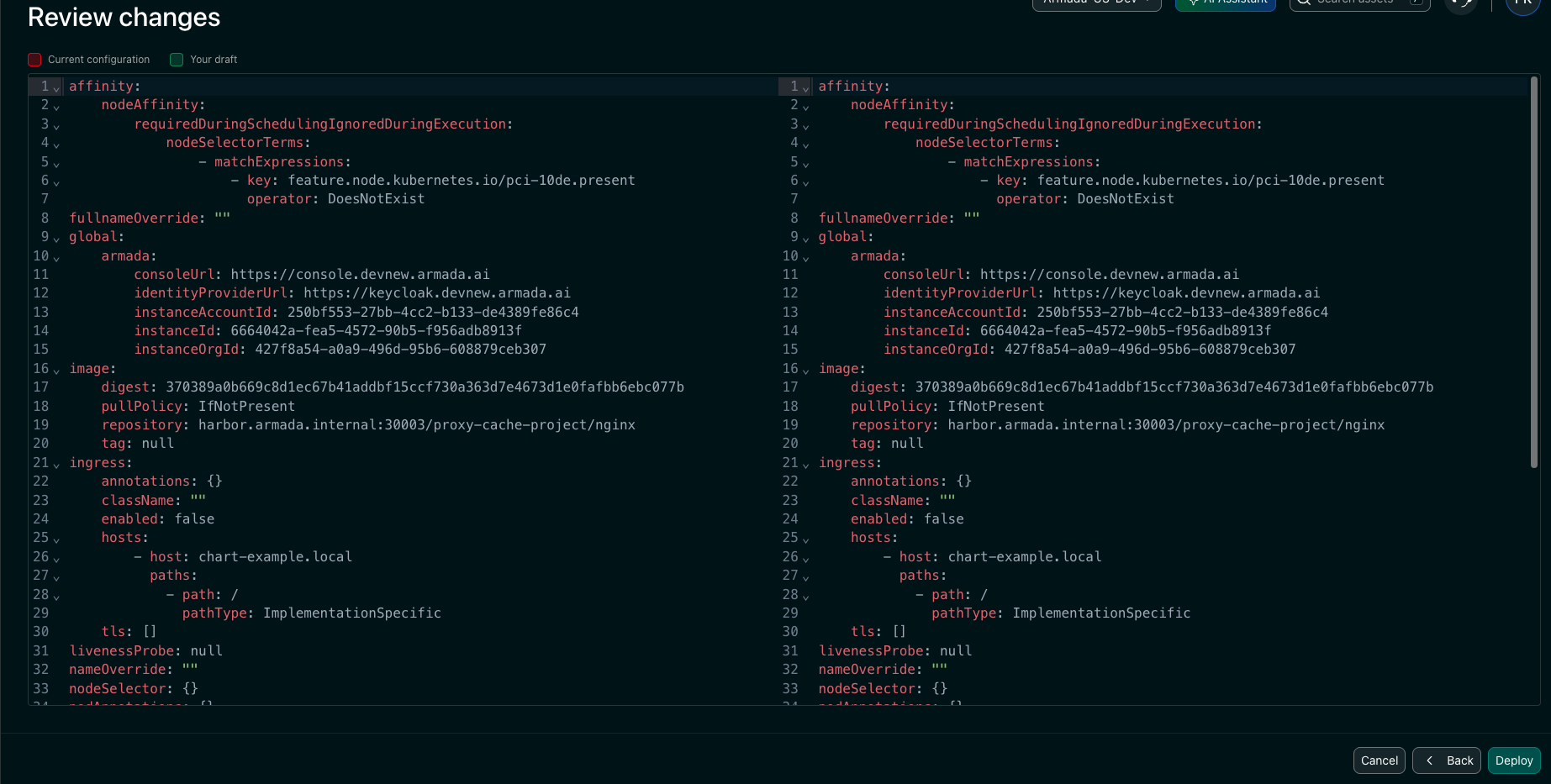
This is the last checkpoint before anything leaves the Console, and it is worth reading properly. The diff is also the clearest confirmation of the minimal-override behavior described in step 2: what shows as changed is what gets stored against the instance.
Use Back to return to the editor if something looks wrong.
5. Deploy
Deploy commits the configuration change and hands it to the platform's deployment pipeline. It is asynchronous: the Console accepts the change immediately, and the rollout takes as long as your application takes to restart or reconfigure the affected workloads.
The instance moves to in-progress straight away and records its first event. The rest arrive as the cluster reconciles.
You watch this happen in the Progress panel on the instance page, which lists the stages in order and ticks each one off as it completes:
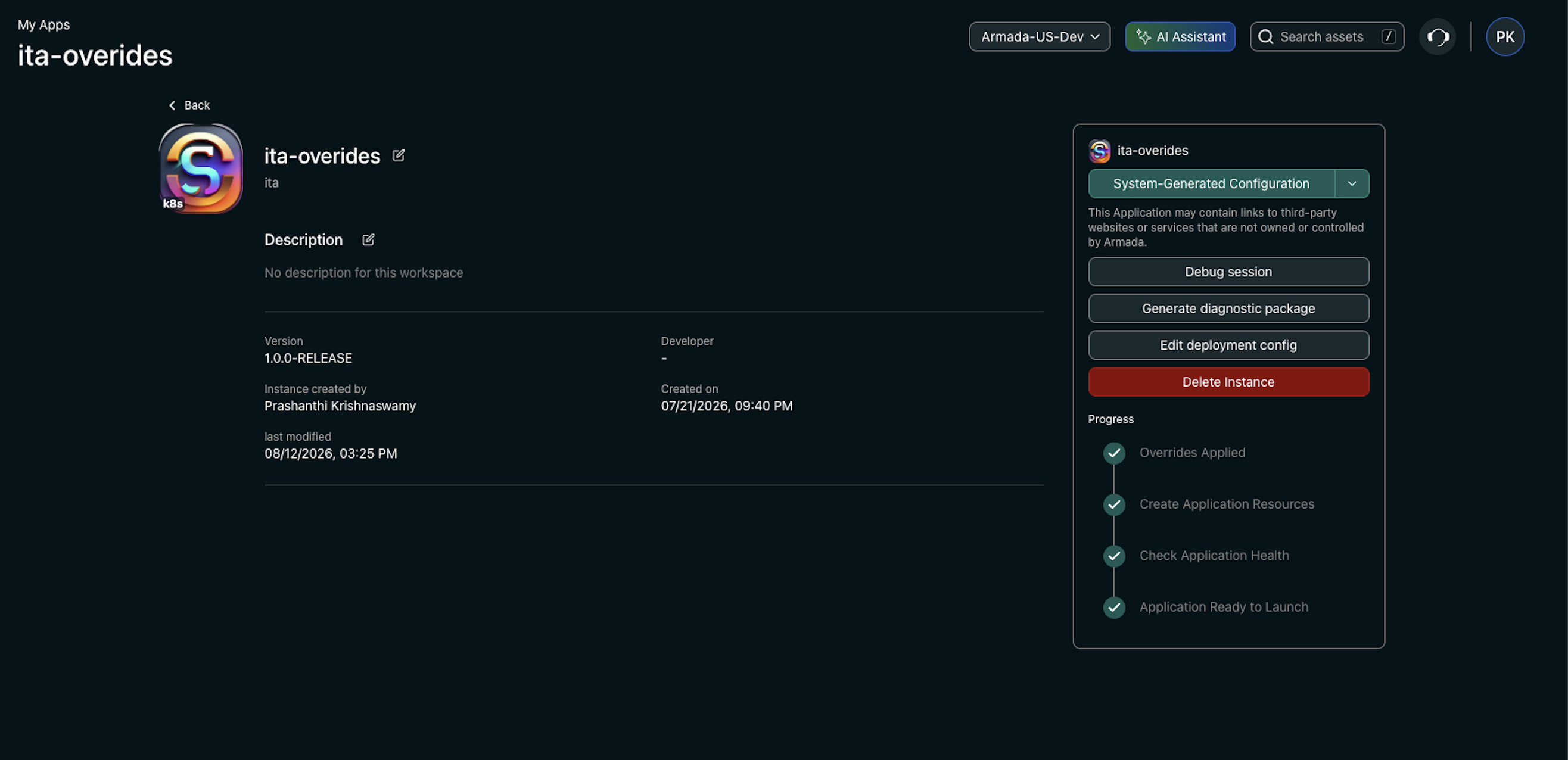
| Event | What it means |
|---|---|
| Overrides Applied | Your change was accepted and committed. Recorded as Completed at the moment you applied — this one is immediate, not something you wait for. |
| Create Application Resources | The cluster is applying your changed configuration to the workloads. |
| Check Application Health | The resources are in place; the platform is waiting for your application to report healthy. |
| Application Ready to Launch | The rollout finished and the application is healthy. The instance returns to available. |
| Application Deployment Failed | The rollout did not succeed. The instance is left unavailable. |
The last two are alternatives — a rollout ends at one or the other, never both.
Each event carries a status of Pending, In-Progress, Completed, or Failed, so you can tell the difference between a stage that has not started, one still running, and one that finished.
Instance state through the whole sequence:
- in-progress — from the moment you deploy until the rollout resolves.
- available — the rollout succeeded and the application is healthy.
- unavailable — the rollout failed, or the application came back unhealthy.
An instance that sits in in-progress for much longer than your application normally takes to restart is the signal to go look — start with step 6.
6. Watch the rollout
Follow the instance's status and event history as it applies. If the rollout stalls or the application comes back unhealthy, the Armada Debug Shell gives you a read-only kubectl session inside the instance's namespace to see what the cluster made of your change — pod status, events, the ConfigMaps that actually landed.
What you can and cannot change
You can change
Anything your chart exposes as a configurable value: replica counts, resource requests and limits, environment variables, feature toggles, timeouts, application settings, and optional sub-components.
If it is a value in your chart, it is overridable.
You cannot change
| Not overridable | Why | Where to do it instead |
|---|---|---|
The global.armada block | The platform owns the console, identity, and tenancy wiring it provisioned for this instance. Changing it out from under the platform breaks the deployment. | Not user-configurable. |
| Secret values | Secrets are never carried in application configuration. | Application Secrets Management |
| The recorded application version | An override never moves the instance to a different Marketplace version. | Not changeable through overrides. |
| The chart itself | Overrides supply values to a chart; they do not modify its templates or structure. | Publish a new chart version. |
global.armada appears in the editor greyed out, and it stays in your configuration exactly as loaded — leave it alone. If it does reach deploy modified, the change is rejected with a message naming the block. That is deliberate, not a bug.
History and attribution
Every applied override is recorded. For each change the platform keeps:
- Who applied it — name and email of the user, captured at the moment they acted.
- When it was applied.
- The exact configuration that was applied, retained as a versioned change in the deployment repository.
The full sequence of applied overrides is retained, so an instance's configuration history reads as a chronological record: what changed, when, and who changed it.
Treat this as an audit trail. It exists for support, for post-incident review, and for answering "why is this one instance configured differently from the other forty?"
Concurrency: one editor at a time
Overrides use a refresh-and-retry model rather than a lock.
When you open the configuration view, you are handed a snapshot of the instance's current state. If someone else changes the instance before you press Deploy, your deploy is rejected with a message telling you your view is out of date.
Nothing is lost and nothing is silently overwritten. Reload the configuration, redo your edit on top of the current state, and deploy again.
This is what prevents two operators from clobbering each other's changes: the second one to deploy is told to look again rather than being allowed to overwrite work they never saw.
Behavior you should know about
Overrides survive restarts and reschedules. The configuration lives with the deployment, not with the pod. Restarts, node failures, and rescheduling all preserve it.
Deploying the same configuration twice is rejected. If your edit is identical to what is already deployed, the platform tells you there is nothing to change rather than triggering an empty rollout.
Overrides replace, they do not accumulate. Each deploy supplies the complete override set for the instance. If you want to remove an override, edit the value back to the chart default and deploy — the platform sees that it no longer deviates from the default and stops pinning it.
Common scenarios
Scale one customer's deployment up
Open the configuration, raise the replica count (and the resource requests, if the chart couples them), check the Problems panel, review, deploy. The rollout is a standard scale-up; the application stays available if your chart is configured for rolling updates.
Turn on an optional component for one instance
Set the component's enable flag, then read the Problems panel closely before deploying: optional components often require companion values (a hostname, a storage size) that the chart only demands when the component is enabled, and the reported error usually names exactly what is missing.
Increase a limit that an instance is hitting
Raise the limit, deploy, then watch the rollout. If the workload restarts to pick up the new limit, expect a brief interruption unless your chart handles it gracefully.
Undo a change you just made
Edit the value back to what it was — or back to the chart default — and deploy. If you are unsure what the deployed value currently is, Review changes shows it directly: the left side is the configuration as deployed today.
Roll a successful override out to everyone
If an override turns out to be right for every deployment, it is not really an override — it is a default. Promote it into your chart and publish a new version, so future deployments get it without anyone having to set it by hand.
Troubleshooting
Validation says the configuration is not valid
Read what is reported — it comes from rendering your actual chart with your actual values, so it names the failing value or template. The usual causes:
- A required value was deleted or blanked.
- A value has the wrong type (a string where a number is expected, or vice versa).
- YAML indentation changed the shape of the document — a nested block became a sibling.
- An optional component was enabled without the values it requires.
Fix what is reported. If a different error comes back, that is rendering reaching further into the chart than it could before — see Errors surface one at a time. Repeat until the Problems panel is clear.
Deploy is rejected as out of date
Someone else changed the instance after you opened it. Reload the configuration, redo your edit on the current state, and deploy again.
Deploy says the configuration is unchanged
Your edit is identical to what is deployed. Either the change you intended did not take in the editor, or it had already been applied.
Overrides are unavailable for an instance
The instance is a platform add-on, a VM workspace (use the VM lifecycle controls), or is being deleted. All three are expected — a VM workspace is excluded even when it was deployed from the Marketplace.
The configuration view won't load, or deploy fails with a service error
The feature depends on the platform's chart rendering service being reachable. A transient error usually clears on retry; a persistent one is a platform issue rather than something wrong with your configuration.
The change applied, but the application is misbehaving
The override landed and the deployment accepted it — the problem is in what the value does, not in whether it was delivered. Use the Armada Debug Shell to inspect pods, logs, events, and the ConfigMaps the pods actually received, then correct the value and deploy again.
Best practices
- Override the minimum. Every value you override is one more piece of configuration pinned against this instance rather than coming from your chart.
- Read the warnings, not just the errors. A warning does not stop you from deploying, so it is the one that reaches the cluster — and an application that starts but behaves oddly is harder to diagnose than one that never renders.
- Prefer chart defaults for fleet-wide truths. If you find yourself applying the same override on every instance, it is a default, not an override.
- Watch the rollout to completion. An accepted change is not a successful one until the instance reports healthy.
Related documentation
- Armada Debug Shell — read-only
kubectlsession for diagnosing an instance after a configuration change - Application Secrets Management — the right place for secret values
- Application Package — how your chart's configurable values are defined
- GitOps Workflows — how configuration changes reach the cluster
- Common Issues & Solutions