Platform Apps Onboarding
This section is for Independent Software Vendors (ISVs) publishing an application to the Armada Edge Platform (AEP) App Store.
What you submit is a Helm chart plus the details of where your container images live. You do not upload the images themselves — your chart says which images it needs, and the platform pulls them from your registry using credentials you supply.
The journey
| Step | What happens | Who does it |
|---|---|---|
| 1. Get access | Publishing is switched on for your account | Armada |
| 2. Create your application | Its name, what it does, how customers find it | You |
| 3. Submit a release | Your chart, your registry details, your version numbers | You |
| 4. The platform runs checks | Five automated checks, the last of which installs your application | Armada |
| 5. Someone reviews it | An Armada reviewer approves or rejects the submission | Armada |
| 6. You publish it | Your application goes live, publicly or just inside your own Atlas Organization | You |
One application can have many releases, each checked on its own.
  YOU                         THE PLATFORM                      ARMADA
  ───                         ────────────                      ──────
  Create application
        │
  Submit release  ──────────▶ Metadata Validation
  (chart, registry,           Helm Chart Validation
   Bundle version)            Secret Validation
                              Images Validation
                              Test Application Deploy
                                    │
                                    └──── passed ────────────▶ Armada Review
                                                                      │
  Publish  ◀──────────────────────────────────────────── approved ────┘
        │
  Live on the App Store
The checks run in that order and stop at the first failure — so a chart problem means the images were never looked at.
Before you start
Three things need to be in place. The first is the one that blocks everything else.
Check you can publish
Publishing is not switched on for everyone, so start by checking that it is switched on for you.
Open App Store in the Console. You should see three tabs:
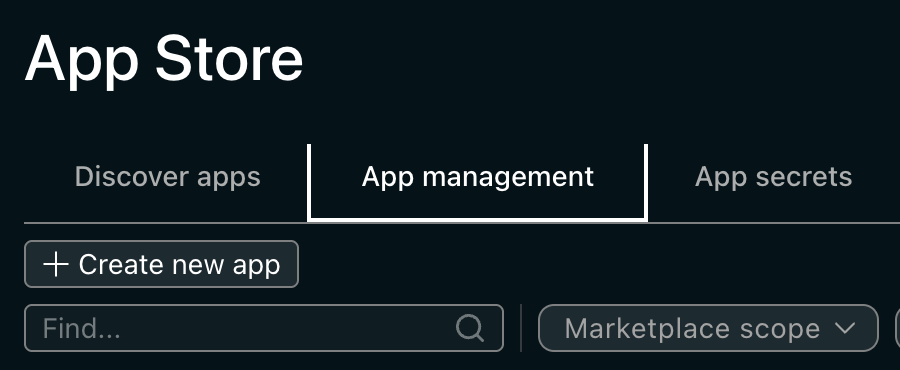
| Tab | Who sees it |
|---|---|
| Discover apps | Everyone |
| App management | Publishers |
| App secrets | Publishers |
If you can see App management, you are set up correctly.
If Discover apps is the only tab you have, your account is not set up for publishing yet. Nothing else in this section will work until it is, so ask your Armada contact to activate the Application Management capability for your account.
You may already have it without asking, though: accounts registered as ISVs get the publishing tabs automatically.
Publishing needs the Application Management capability enabled on the account, under Admin → Capabilities. Armada controls this.
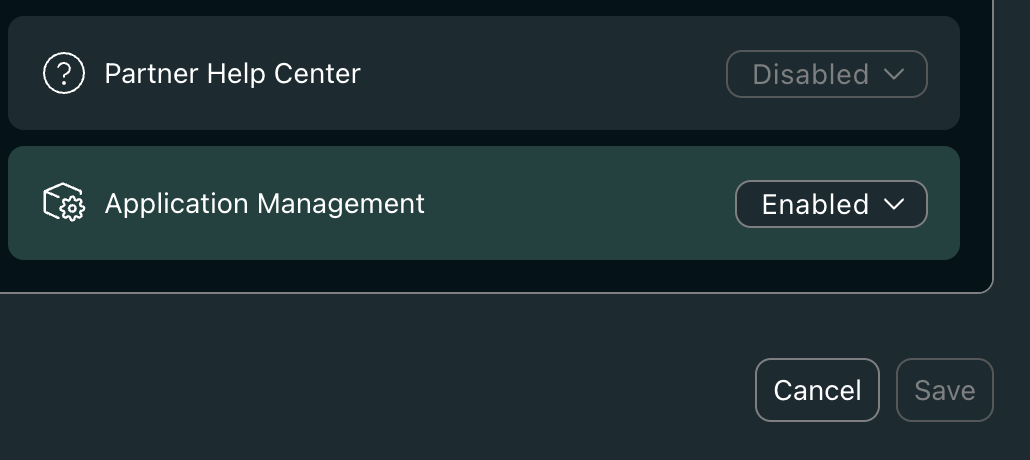
An account registered as an ISV gets the publishing tabs without it being set.
Test your application on a sandbox
A sandbox is a non-production cluster you run your application on before submitting it — either one Armada provides you, or your own Kubernetes cluster. See Sandbox in the glossary.
Nothing checks that you have done this — but the last intake check installs your application for real, so an application that has never started will fail there, at the slowest possible point.
Run it with the chart and values you are about to submit. If you do not have a sandbox, ask your Armada contact for one.
Set up your vaults
Your application needs two kinds of private information stored on the platform:
| Kind | What it holds | Needed? |
|---|---|---|
| Registry vault | The username and password for your image registry | Always |
| App vault | Your application's own secrets — API keys, passwords, tokens | Only if your application uses any |
A vault is where the platform keeps this information. It checks that the secrets your chart asks for are there; it does not create them.
You can set vaults up while filling in the release form — it only has to be done by the time you submit. See Application Secrets Management.
Vault names must be globally unique — a plain name like app-secrets will already be taken. Put your company name in front: acme-app-secrets.
Names take letters, numbers and hyphens. Underscores are not allowed.
In this section
| Page | Read it when |
|---|---|
| Submitting a release | You are filling in the form and want to know what each field wants |
| Intake validation | You have submitted, and want to know what is being checked |
| Troubleshooting intake | Something failed and you want to know why |
Related documentation
| Topic | Where |
|---|---|
| Building your chart and images | Application Packaging, Container Best Practices |
| Storing your application's data | Storage & Data Management |
| Changing settings after a customer installs your application | Application Overrides |
| Investigating a running application | Armada Debug Shell |
The packaging pages describe a security scan as part of certification. Intake does not run one — its five checks are metadata, Helm chart, secrets, images and a test deployment, and none inspects image contents.
So a release can pass intake and still owe a scan requirement from the packaging side. Meeting the container and image requirements there remains your responsibility; intake will not tell you if you have missed them.