Intake Validation
Where your release is in its life
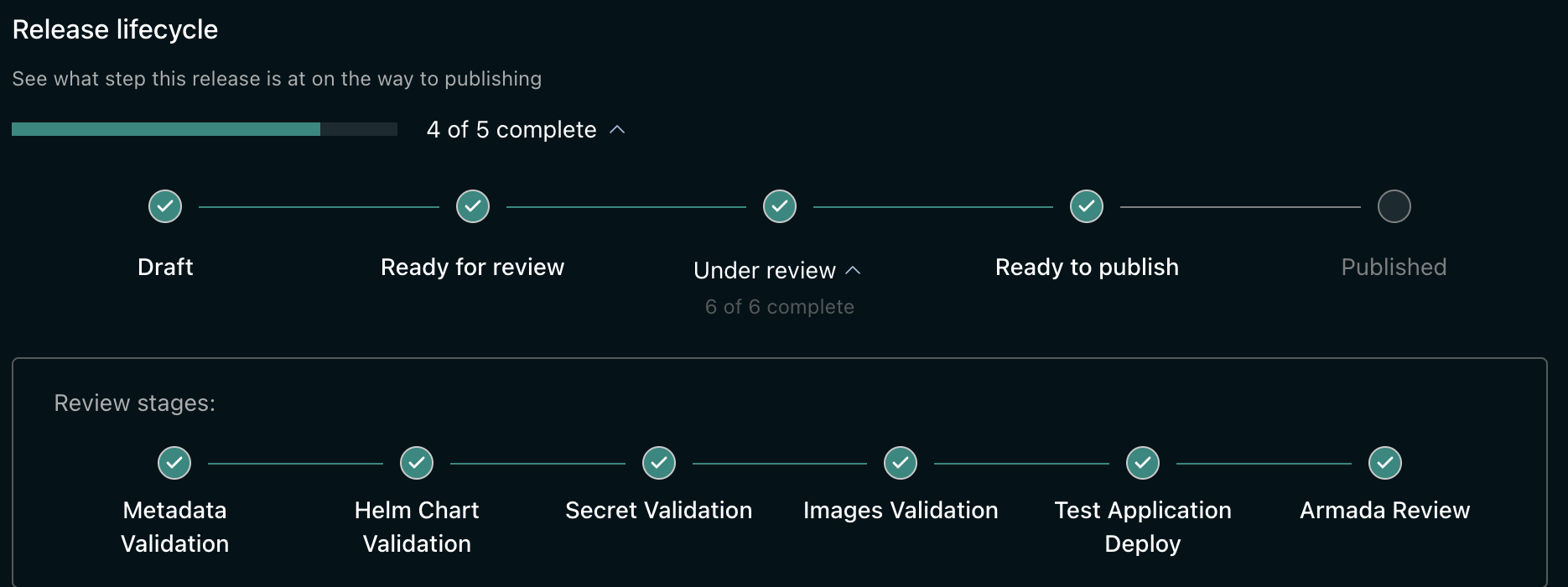
The bar on the release page shows five steps:
Draft → Ready for review → Under review → Ready to publish → Published
| Step | What it means | What to do |
|---|---|---|
| Draft | Saved, not submitted | Finish it and submit |
| Ready for review | Submitted, waiting to start | Wait |
| Under review | The six checks are running | Watch the review stages |
| Ready to publish | Approved | Publish it |
| Published | Live on the App Store | Nothing |
A release can also come to rest off that line:
| State | What it means | What to do |
|---|---|---|
| Pending approval | The checks passed; a reviewer has not decided yet | Wait |
| Review failed | A check failed | Fix it and submit the same release again |
| Rejected | A reviewer declined it | Read their reason under Errors and messages, address it, then submit again |
| Archived | Withdrawn and no longer listed | Nothing |
The six checks inside Under Review
Under review is where the work happens. It expands into six stages, ticked off as each passes.
| Check | What it looks for |
|---|---|
| Metadata Validation | Your release details are complete and the version number is valid |
| Helm Chart Validation | Your chart is well-formed, it builds, and what it builds is a valid application |
| Secret Validation | The secrets your chart asks for are actually in your vaults |
| Images Validation | Your credentials work and every image your chart needs can be downloaded |
| Test Application Deploy | Your application installs for real and starts up healthy |
| Armada Review | A person at Armada approves it or turns it down |
  Metadata ─▶ Helm Chart ─▶ Secret ─▶ Images ─▶ Test Deploy ─▶ Armada Review
     │            │           │         │           │
     └────────────┴───────────┴─────────┴───────────┘
              any failure here stops the run
The checks run in order and stop as soon as one fails. The checks after it do not run at all.
So if Helm Chart Validation fails you will see nothing about your images — not because they are fine, but because they were never reached. Fix what failed and the next attempt gets further.
What each check does
Metadata Validation
Confirms your release details are filled in and that the Bundle version is a valid version number. The chart version is checked separately, in Helm Chart Validation.
Helm Chart Validation
The widest check — it has more ways to fail than any other.
Confirms your chart has Chart.yaml, values.yaml and a templates folder, builds it, and checks the result is valid Kubernetes. It also reads out the images your chart needs — a chart needing none is refused, since there would be nothing to install.
This check runs the same tools you can run on your own machine:
helm lint ./mychart
helm template ./mychart > built.yaml
kubectl apply --dry-run=client -f built.yaml
grep -E '^\s*image:' built.yaml       # should list at least one image
grep '^version:' ./mychart/Chart.yaml # must equal the chart version you submit
A chart that gets through all five of those will usually pass this check.
Secret Validation
Checks that each vault your chart names exists and each secret inside it is there. If your chart names more than one vault, all have to resolve — one wrong name fails the check.
This step only looks; it creates nothing.
Images Validation
Confirms your credentials work and that every image your chart needs can be downloaded. All are checked, so one tag that has been deleted, renamed or mistyped fails the check.
Test Application Deploy
Installs your application on a real cluster and waits for it to start. The slowest check — it takes as long as your application takes to boot. A clearly dead deployment ends early rather than waiting it out: a container that keeps restarting, an image that will not download, one that runs out of memory, or one that will not fit.
Armada Review
Someone at Armada approves your release or turns it down. If turned down, their reason appears on the release page against this step — you do not have to ask.
Following along
Each check reports its own state, separate from the release step above:
| Check state | Meaning |
|---|---|
| Pending | Accepted, not started yet |
| Running | In progress |
| Success | Everything passed |
| Failed | A check failed |
| Cancelled | You stopped it |
A failed check is listed by name under Errors and messages on the release page, with a message explaining what went wrong. Take that message to Troubleshooting intake.
Stopping a run
You can cancel a run while it is going; once finished you cannot. If a run is slow, cancel rather than resubmitting — a second submission of the same version is refused while the first is running.
Publishing
Publishing is your decision, not the reviewer's — an approved release sits at Ready to publish until you publish it.
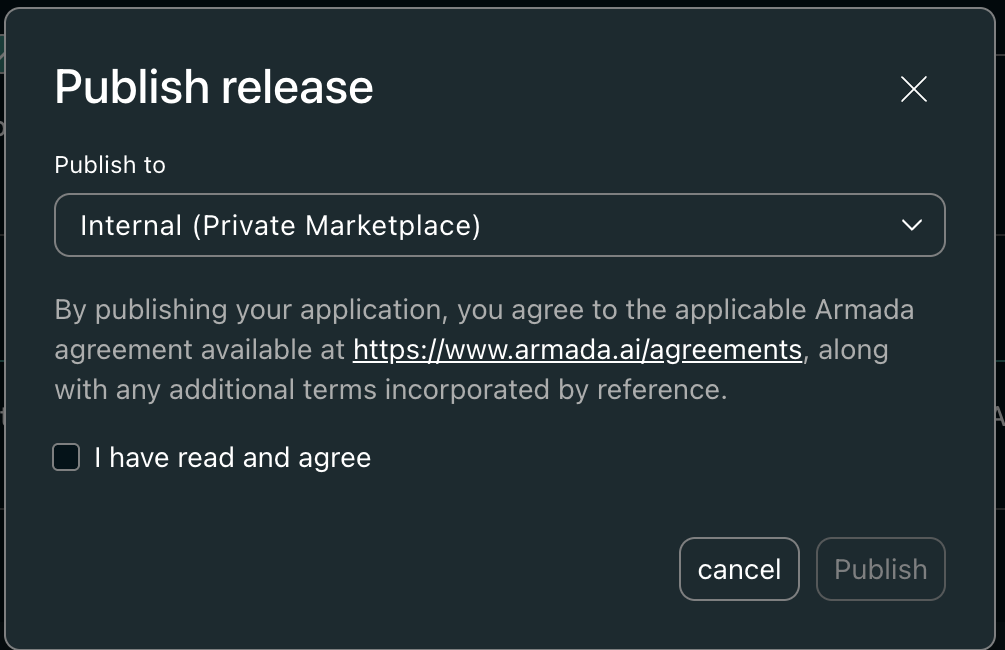
Publish release asks where to publish, and asks you to accept the terms.
| Publish to | Who can see it |
|---|---|
| Internal (Private Marketplace) | Only your own Atlas Organization |
| External (Public Marketplace) | Every Armada customer |
You also have to tick I have read and agree, which covers the applicable Armada agreement and any terms it incorporates. Publish stays disabled until you do.
Remove listing takes the listing back down afterwards.